The Admin Dashboard is where admins and supervisors run events, shifts, agendas, reports, volunteers and committees. Everything a volunteer does is in the Volunteer Manual.
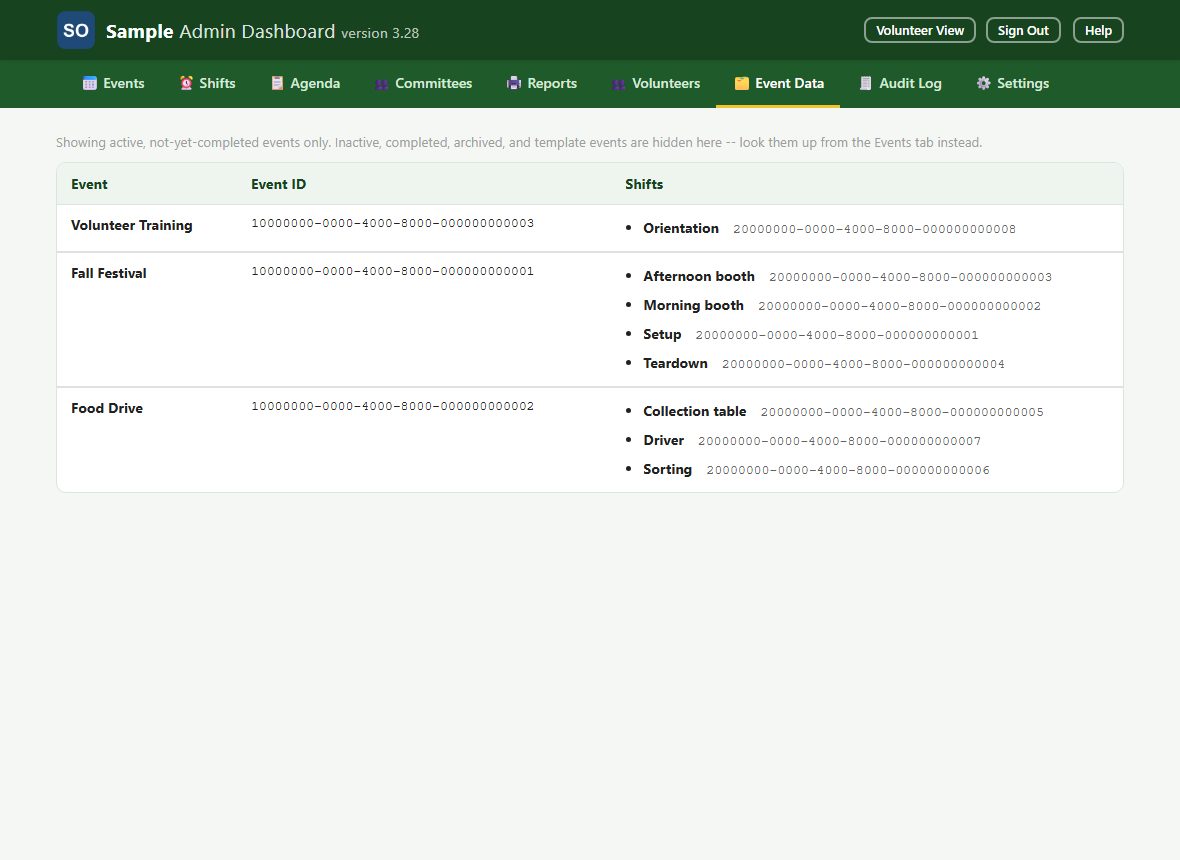
Every entry in the contents, and every link in the text, jumps to that topic. The pictures show a sample organization with made-up events and people.
Getting started
Getting to the Admin Dashboard
There's only one link to share: the same volunteer sign-up page everyone uses. Sign in there as usual; once you have used your admin access, an Admin Dashboard button appears at the top. (You can also open admin.html directly.) On the dashboard, Volunteer View takes you back, without signing in again, in the same browser tab.
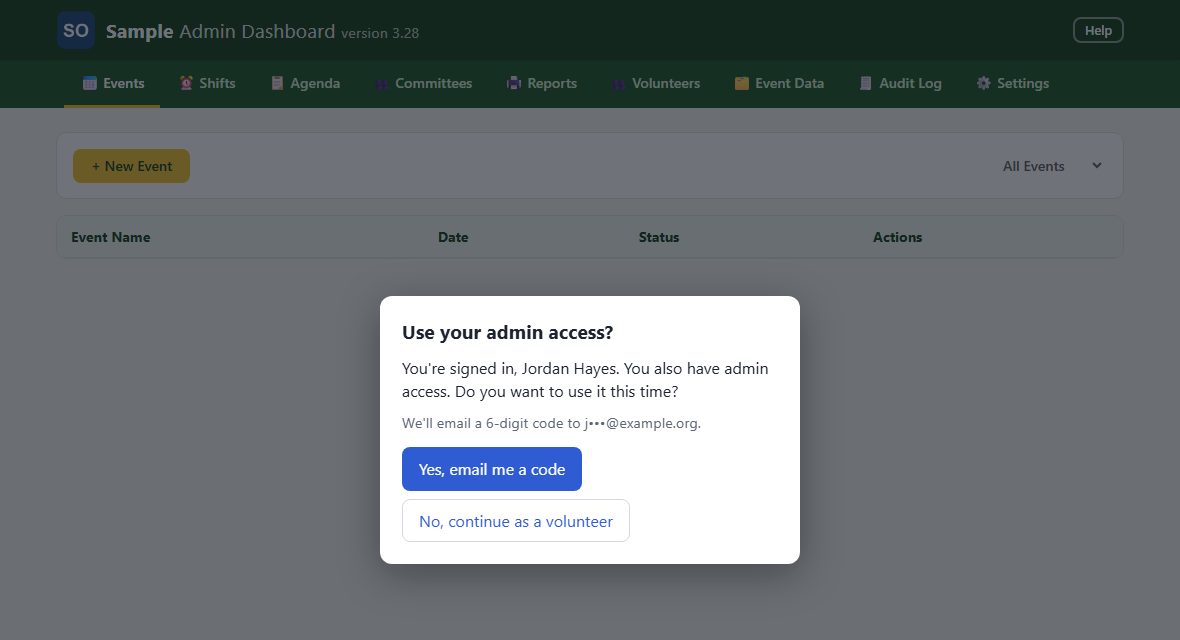
Sign in with your name and PIN like any volunteer. If you also hold admin access, the box asks Use your admin access? Tap Yes, email me a code. (No, continue as a volunteer keeps you on the volunteer page; the Admin Access button there lets you step up later.) Admin and supervisor access are given by another admin.
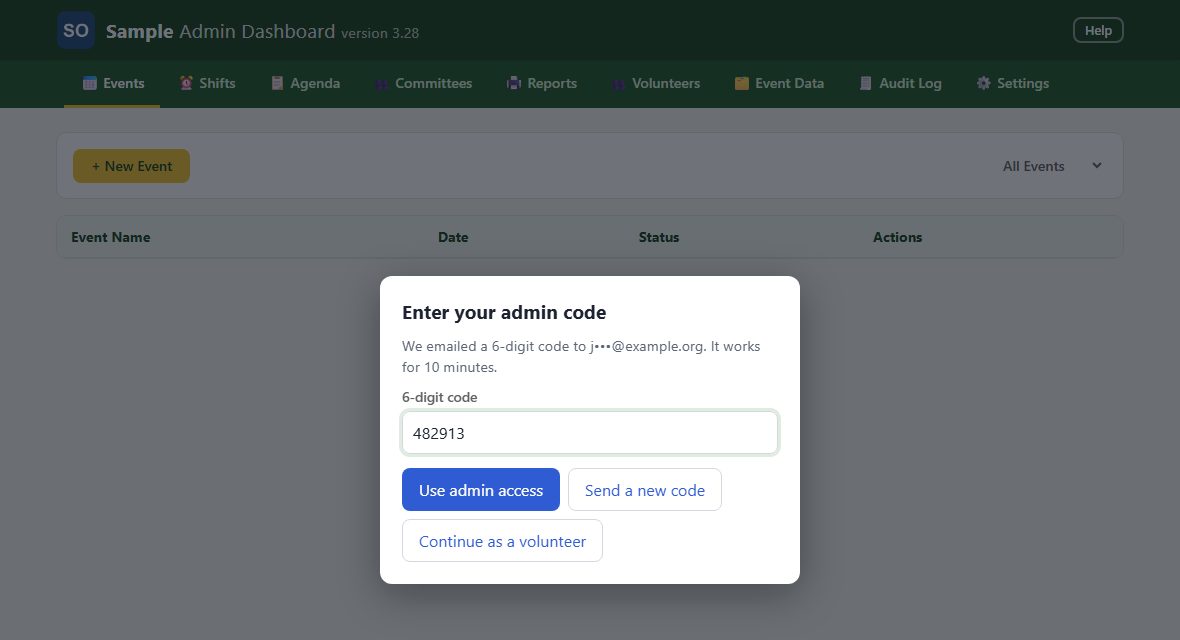
A 6-digit code is emailed to the address on file for you. Type it and tap Use admin access. The code works once and expires in 10 minutes; tap Send a new code if it doesn't arrive. If no email address is on file for you, ask a site admin to add one.
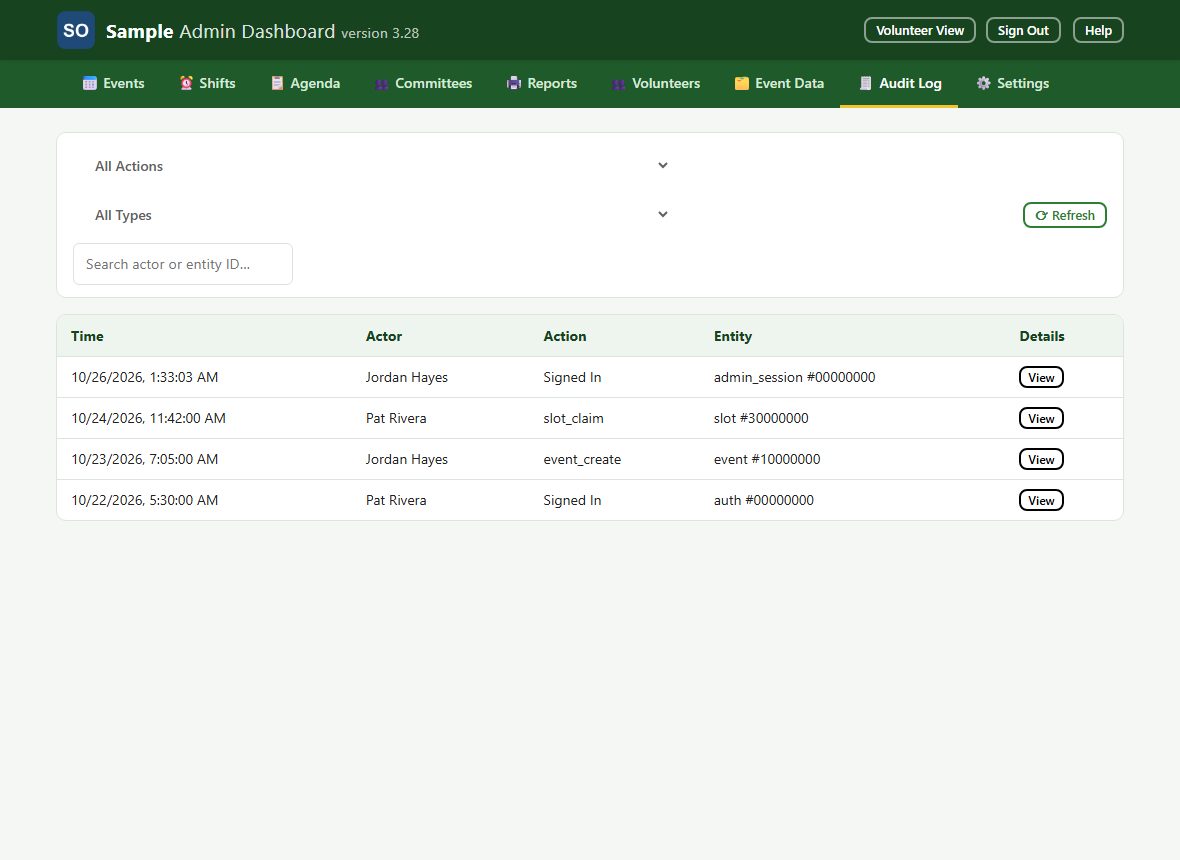
A supervisor signs in to the dashboard and can see the volunteer roster (with email and phone), add volunteers, fill and clear slots, manage event agendas, print reports and read the audit log. They can't create, edit or delete events or shifts, edit or delete volunteers, reset PINs or merge profiles. Admins grant supervisor access on the Settings tab (Settings tab).
The dashboard header shows when your organization's license ends, after the version number. After that date the app keeps working for one final week, and a banner says exactly when it will stop. If the license isn't active, everyone sees Scheduling is paused; it is renewed with the company that supplies the app, then Check again clears the screen.
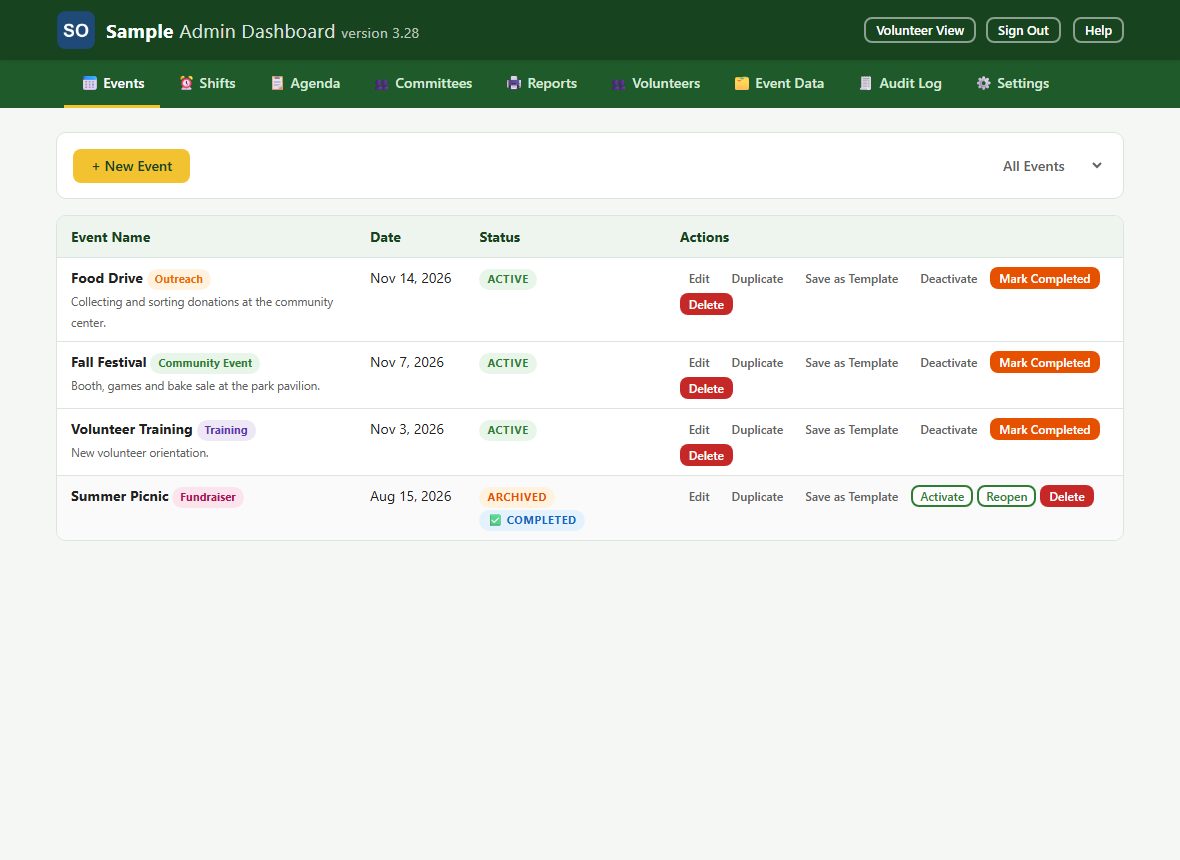
See every event, its status and quick actions: Edit, Duplicate, Save as Template, Activate or Deactivate, Mark Completed (or Reopen), and Delete. The list at the right shows All Events, Active, Inactive, Archived, Completed or Templates.
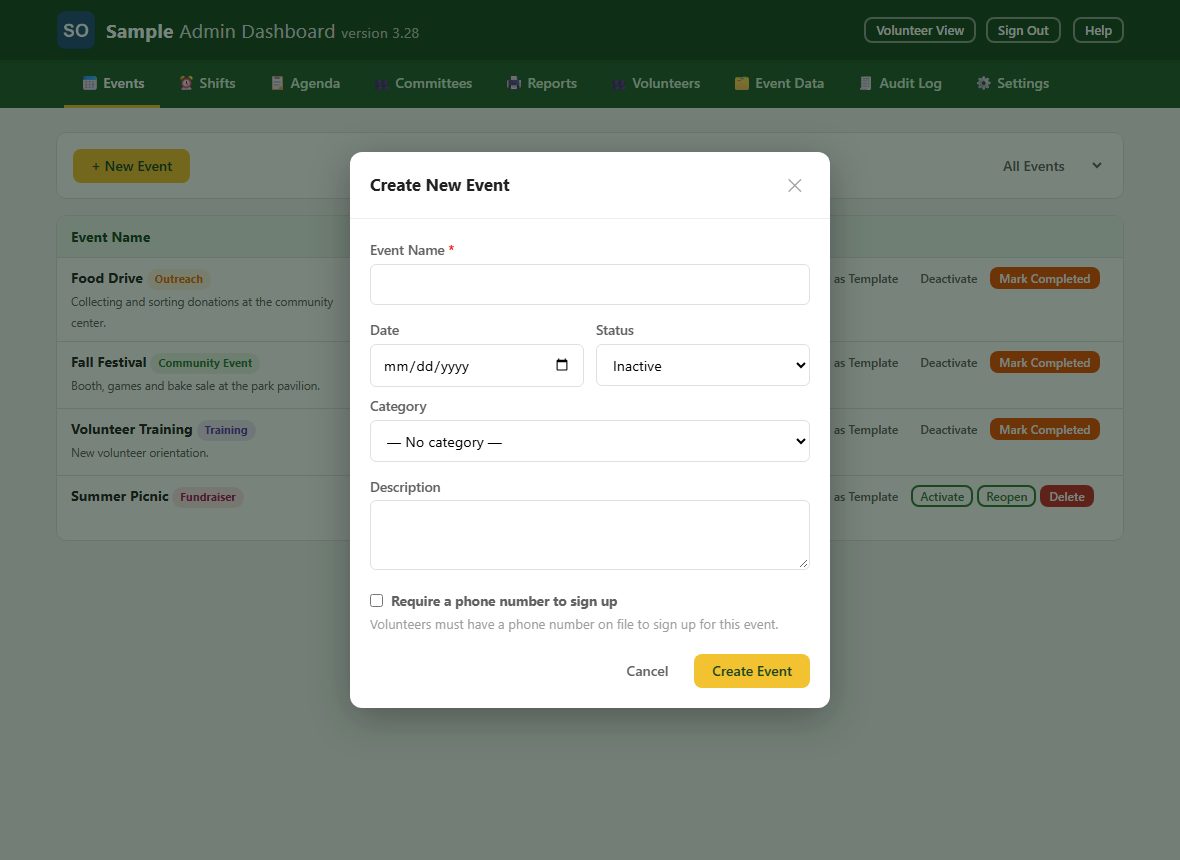
Tap + New Event and fill in the name, date, status, category and description. Tick Require a phone number to sign up if volunteers must have a phone on file, then tap Create Event. A new event starts as Inactive, so volunteers can't see it until you add its shifts and tap Activate.
When an event is over, tap Mark Completed or Deactivate (or archive it) rather than deleting it. That keeps every volunteer's hours from the event. Deleting erases them for good; the Delete Event box warns you, and you have 8 seconds to undo.
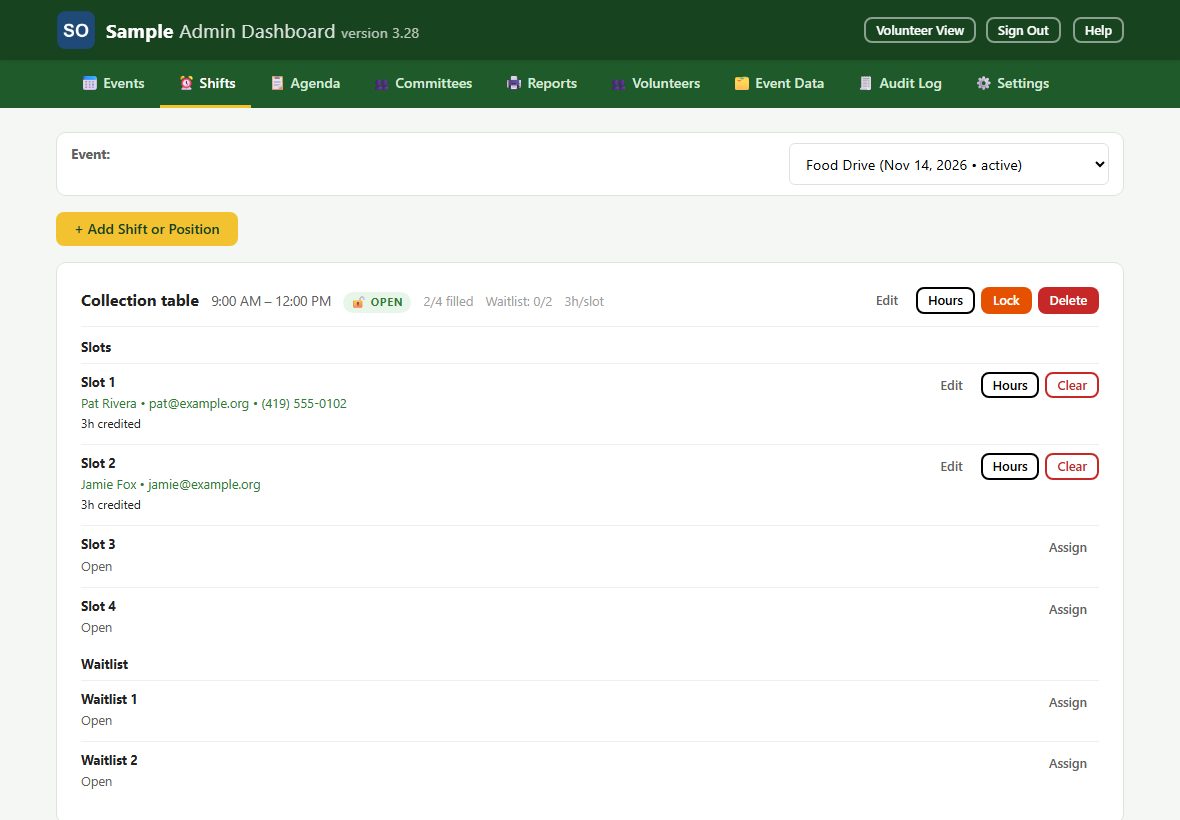
Select an event to manage its shifts and positions. Each card shows its slots and waitlist, with Edit, Hours, Lock (or Unlock) and Delete. Each slot has Assign (or Edit), Hours and Clear; Clear moves the next waitlisted volunteer up. Lock stops volunteers changing a shift, and Hours corrects the hours credited after the event.
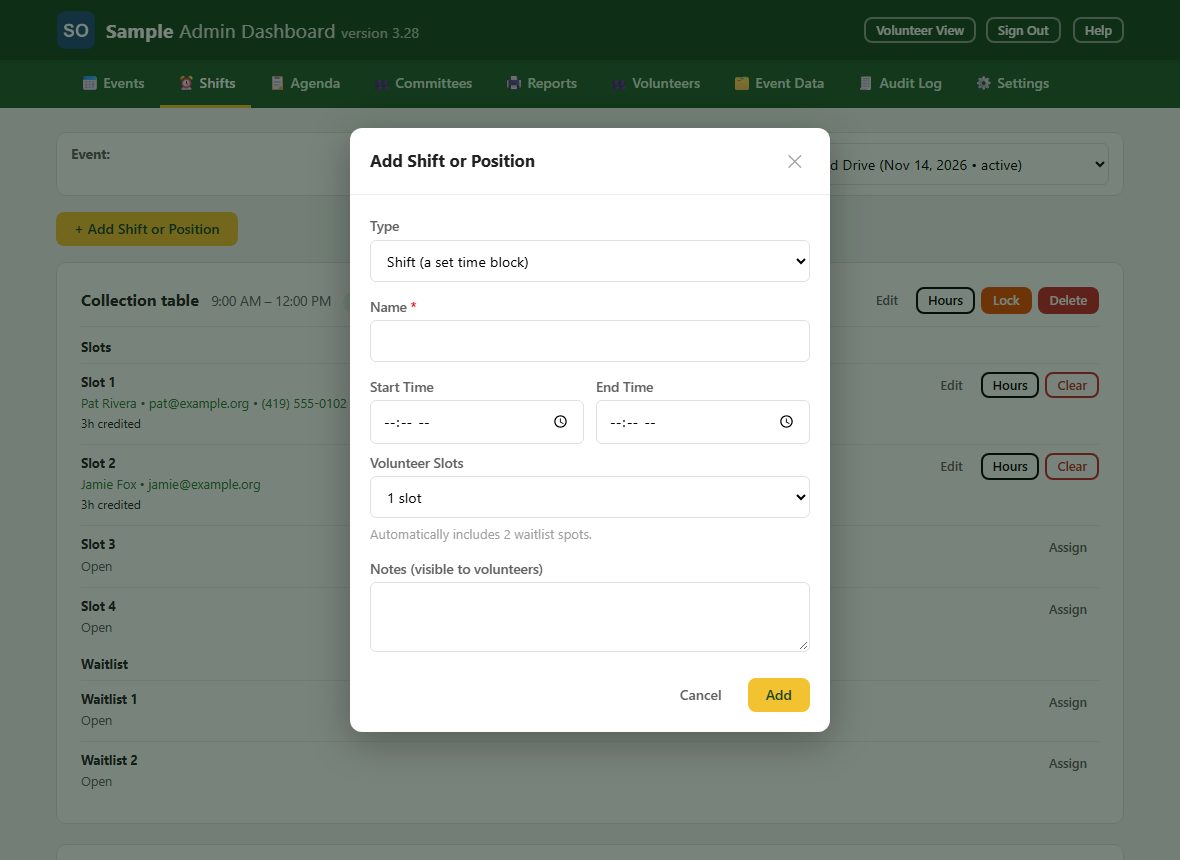
Tap + Add Shift or Position. For a shift, leave Type on Shift and set the name, start and end times, and the number of volunteer slots (2 waitlist spots are added automatically). For a role that lasts the whole event (like Driver), set Type to Position: the first position takes the event's start and end times, and later ones copy them. Notes are shown to volunteers.
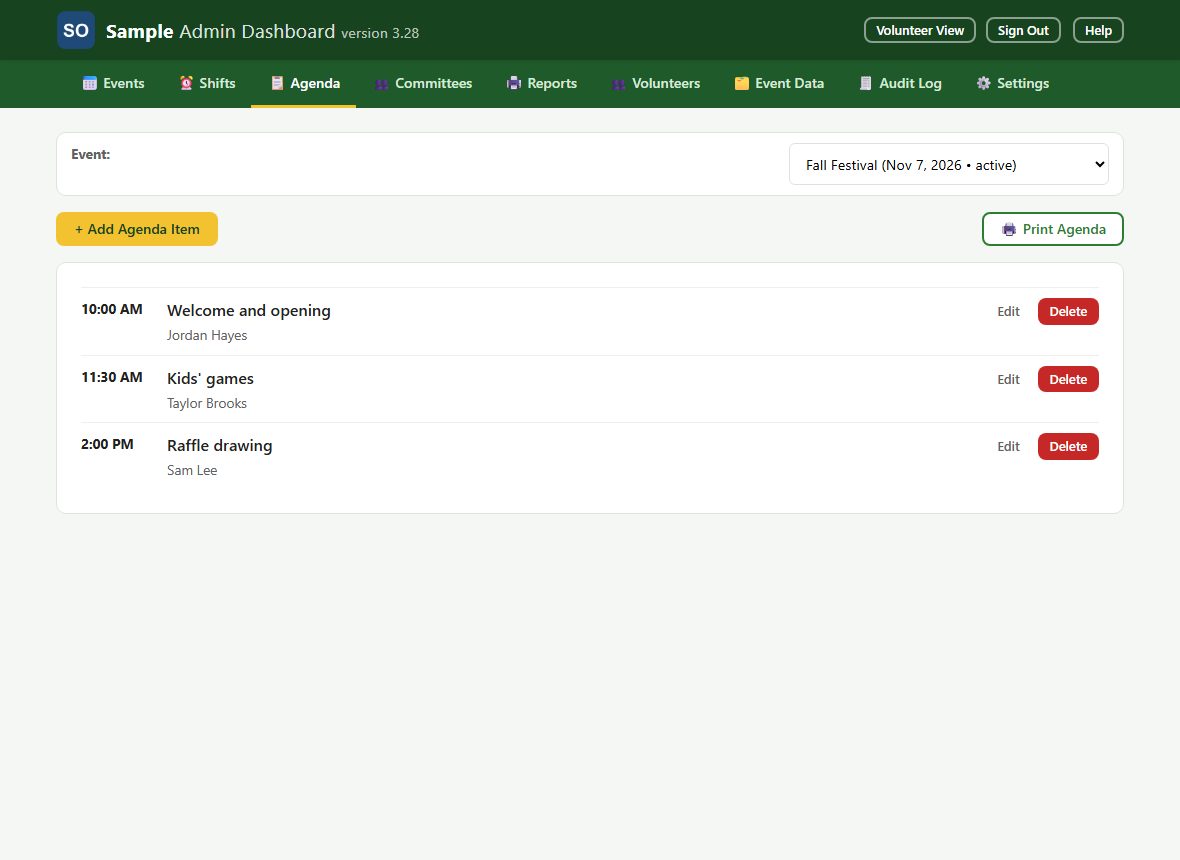
Select an event and tap + Add Agenda Item to build a printable agenda: a start time, a title and a name (anyone, not only volunteers). Items are listed by time. Tap Print Agenda to print it.
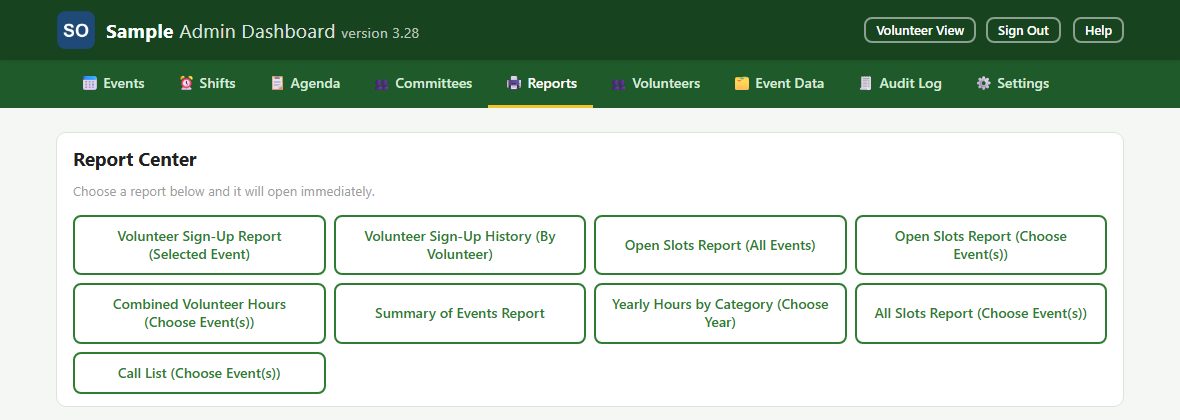
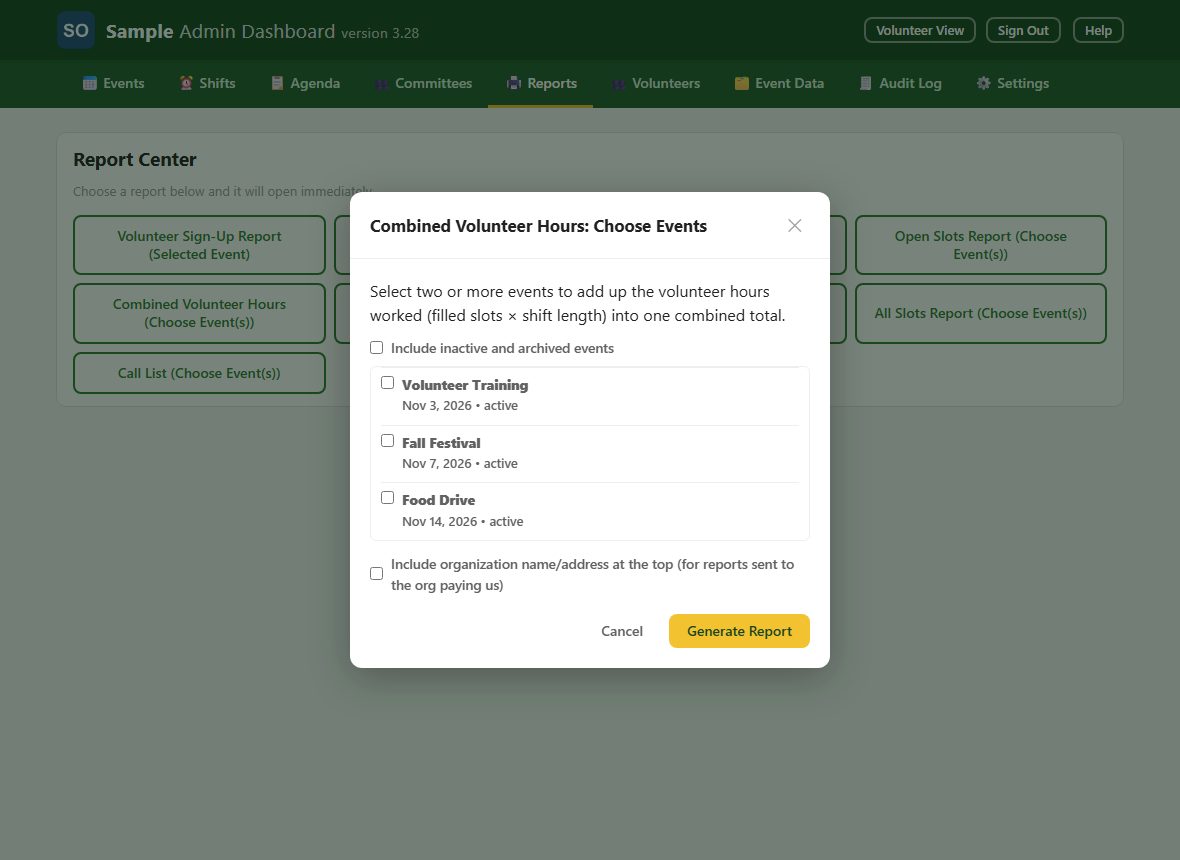
One-click reports: sign-ups for the selected event, each volunteer's sign-up history, open slots, combined volunteer hours, a summary of events, yearly hours by category, all slots, and a call list. Each opens in a new window with Print / Save PDF and Download HTML.
Combined Volunteer Hours asks which events to include. Tick Include inactive and archived events to add up hours from events that are over (those hours are never lost when an event is deactivated), and tick the letterhead box to print your organization's name and address at the top.
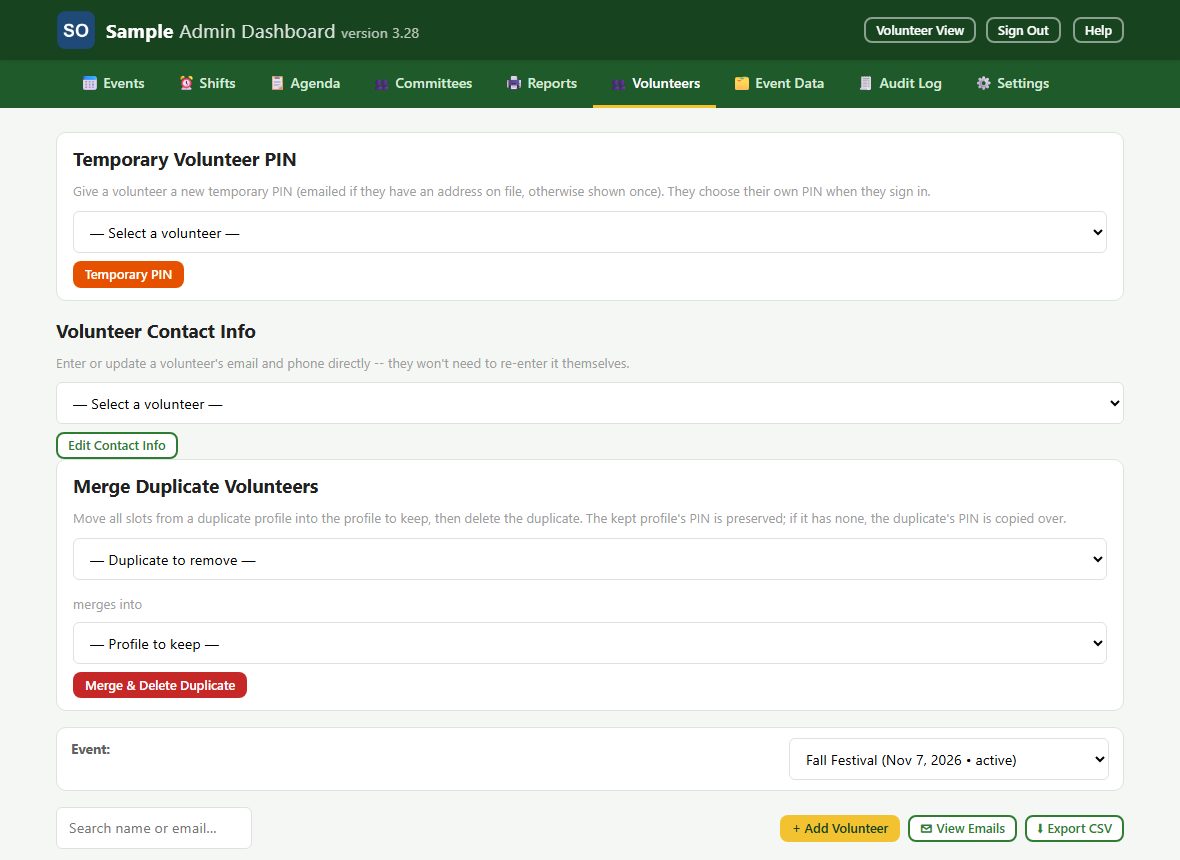
Give a volunteer a temporary PIN, edit contact info, merge duplicate profiles, and manage an event's roster directly. Pick an event to see who is in each slot; + Add Volunteer adds a new person, View Emails copies the emails, and Export CSV downloads the roster.
Under Temporary Volunteer PIN, pick a volunteer and tap Temporary PIN. It replaces their PIN, is emailed to them if an address is on file (otherwise shown once), works once and expires in 14 days. They choose their own PIN when they sign in. People can also be added and given PINs on your site's permissions page (Site Auth).
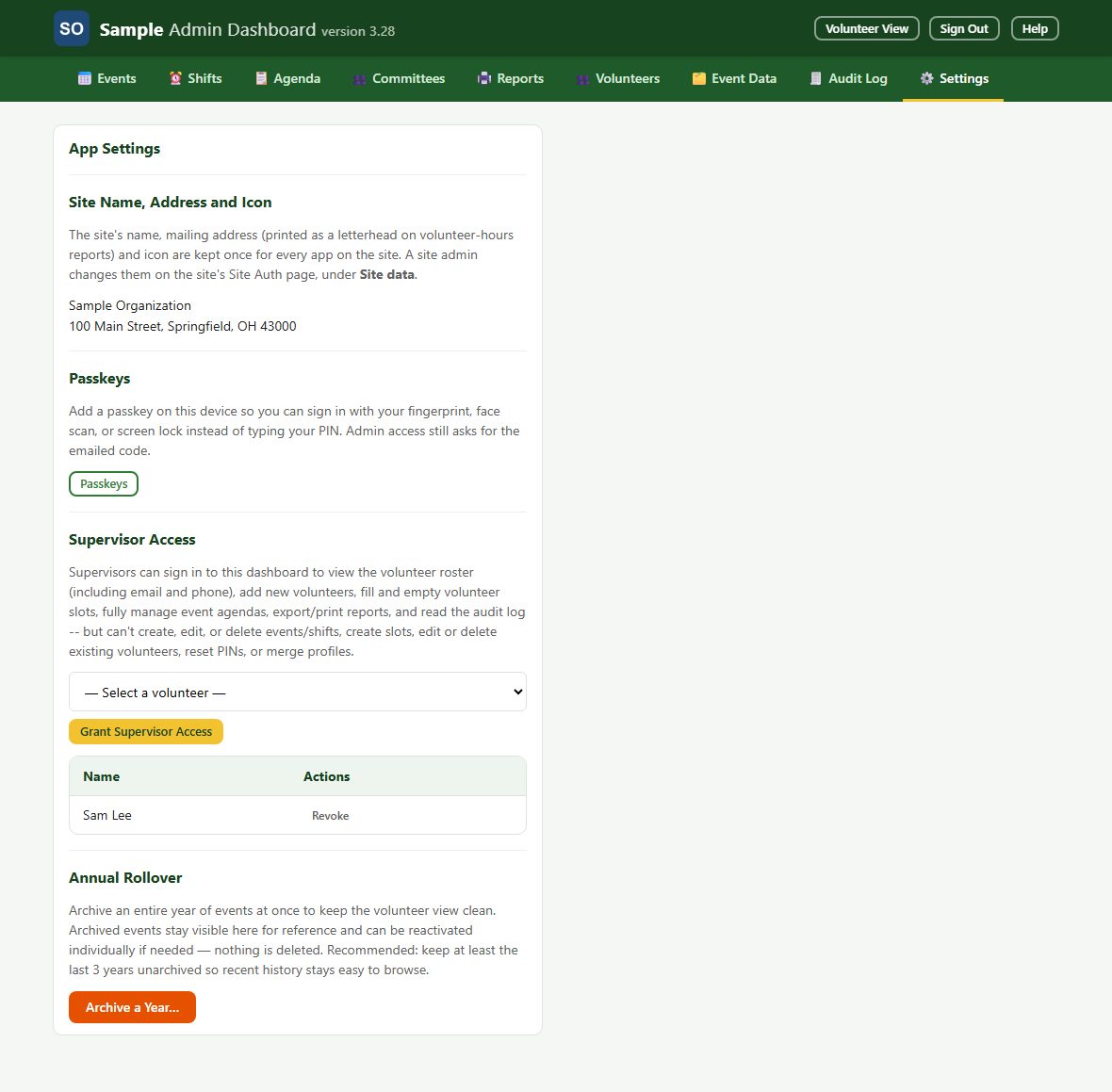
Site Name, Address and Icon shows the organization details the reports print; a site admin changes them on your site's permissions page (Site Auth), under Site data. Passkeys adds a passkey for this device (admin access still asks for the emailed code). Supervisor Access grants or revokes supervisor access (Supervisors). Annual Rollover archives a whole year of events at once; nothing is deleted.
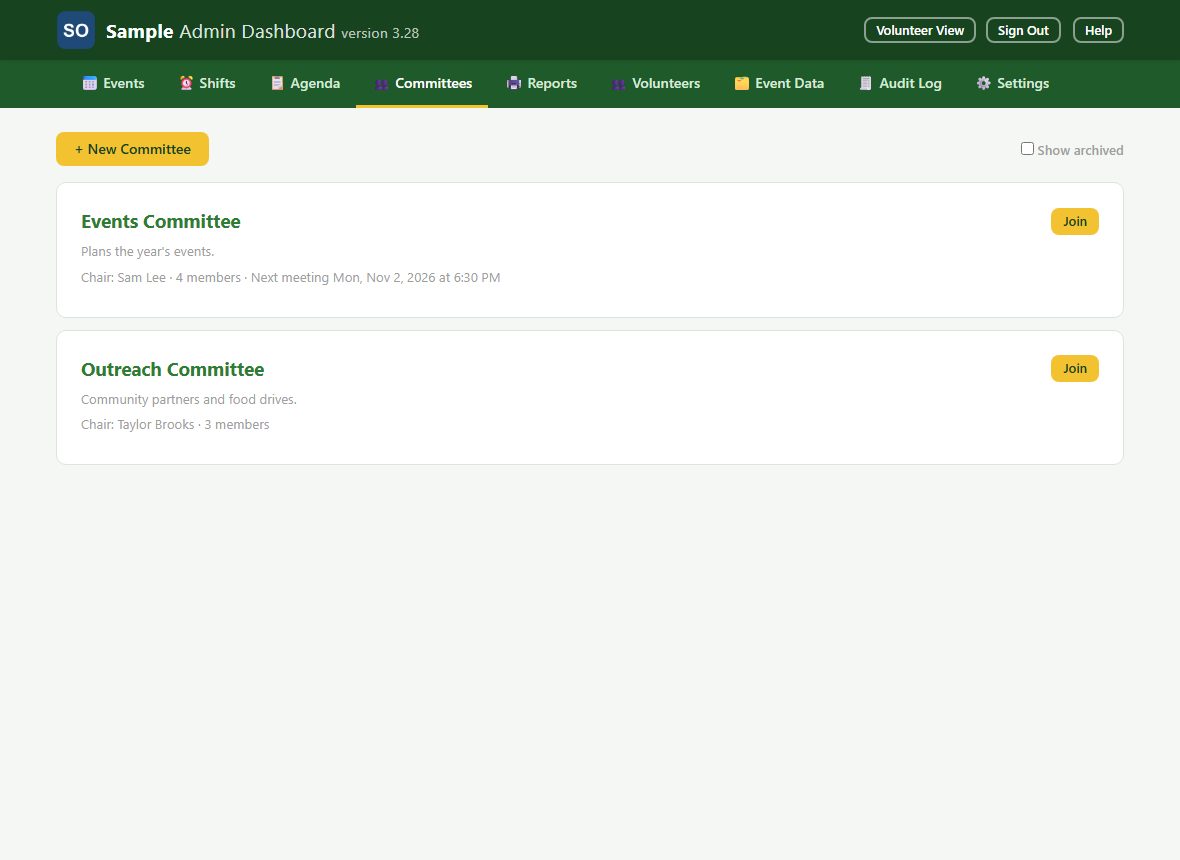
Lists every committee. Tap + New Committee to create one (a name and a description), and tick Show archived to see archived ones. Admins can do everything a chair can do, on any committee (see the chair's part of the What a chair sees in the Volunteer Manual).
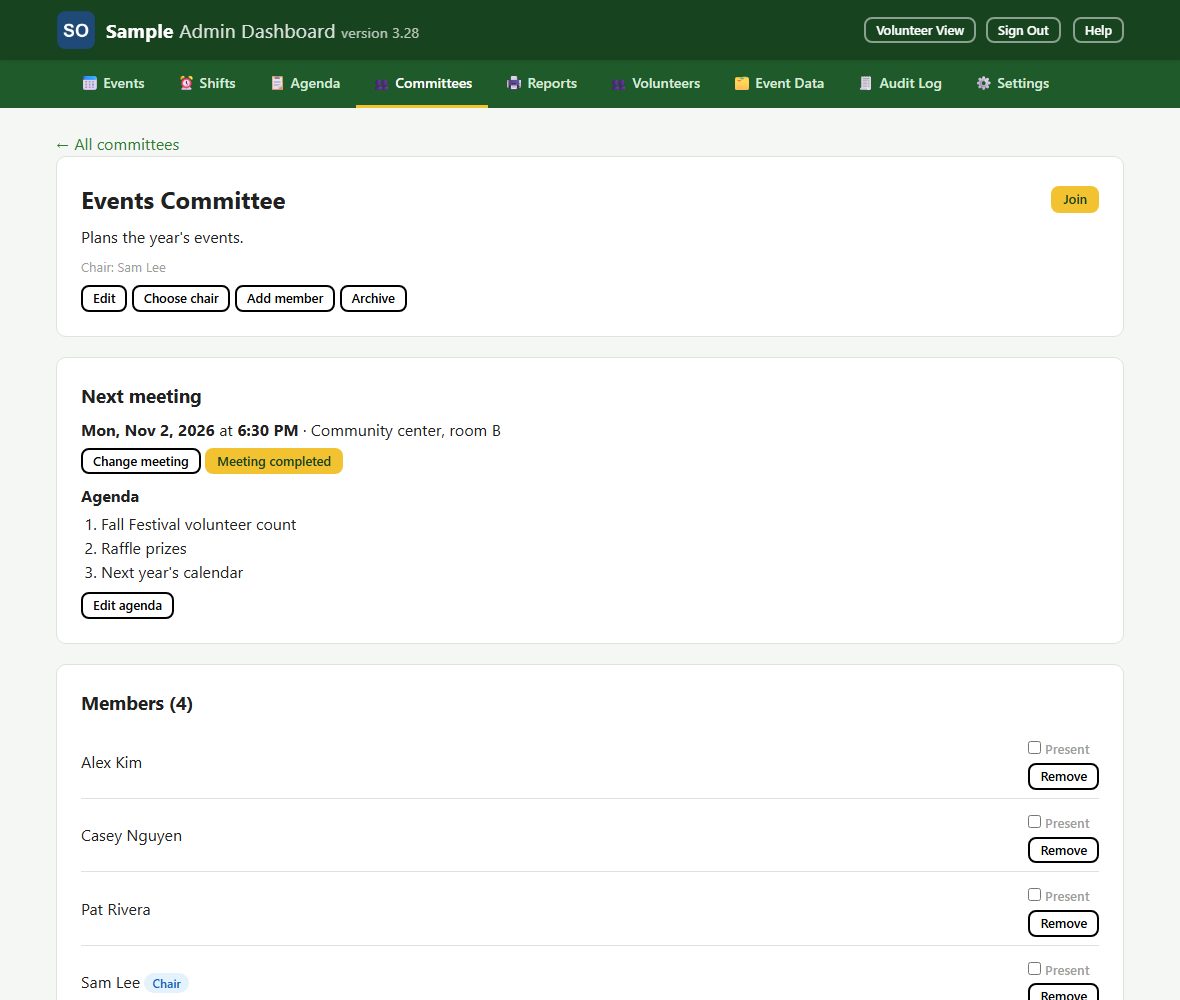
On a committee's page, Edit changes its name and description and Archive hides it from volunteers (Restore brings it back). Add member adds anyone with access to the app, and Remove takes a member off, at any time. Choose chair picks the chair from the members; the chair can't be removed until you choose a new one.
Once a committee has met, members ask to join or leave. Their requests wait at the top of the Committees tab under Requests waiting for an admin: tap Approve to make the change, or Deny to leave things as they are.